Diagnosing USB Problems
PC side USB A black USB 2.0 usually for mouse or keyboard. Slow.
PC side USB A blue ports USB 3.0/3.1 Gen1 (5 Gbit)
PC side USB A pink or purple are USB 3.1 Gen2 (10 Gbit)
Some devices (even payment terminals) may actually connect on SLOWER ports, due to their design.
PC side USB C generally are USB 3.1 Gen1 or Gen2; sometimes marked; sometimes not. Only the motherboard manual knows for sure.
All Android devices when connected should show up in the device manager under regardless of what they are or do. So a test for a workstation USB port is plugging in an Android phone. It should work 100%. Otherwise, you may have a cable or port problem.
Windows can be notorious for powering down a USB hub. All the USB ports on the workstation are connected to internal hubs. It can happen with thumb drives, even while navigating them with Windows explorer. Switching off power O/S saving modes does not always help. If you run into this, you need to go down to the bottom of the device manager hive and expand the USB controllers node. See below... Right-click each driver and select properties. If available, then click the power management tab and un-check the allow computer to power off. You have to do this for all of them since it is impossible know which is the right one. See below...
Some USB devices struggle if they are plugged into the computer before the proper driver is loaded. It may be necessary to change Device Manager view to show hodden devices, then delete each one. Reboot to get a clean start.
Old School Powered USB
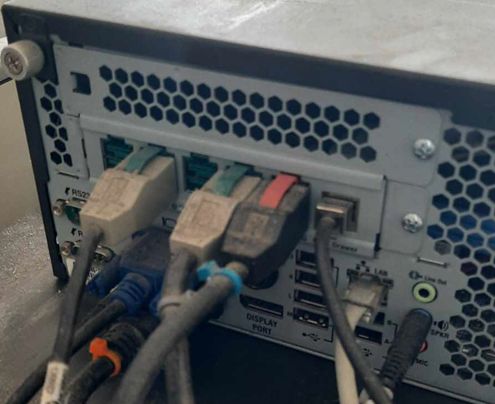
Truly Powered USB is also known as Retail USB, but is also sometimes referred to as USB Plus Power or USB + Power. These are no longer used by most manufacturers, except perhaps by NCR.
Often older scanner/scale combinations used these. It is typically easy to replace the cables with RS232 and power supply with "external".
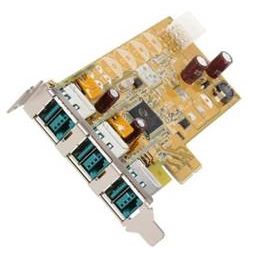
Red is sometimes 24V and green is 12V. Dust should not be included ;>)