Click >Maintenance >POS Terminal Setup >Lane Buster
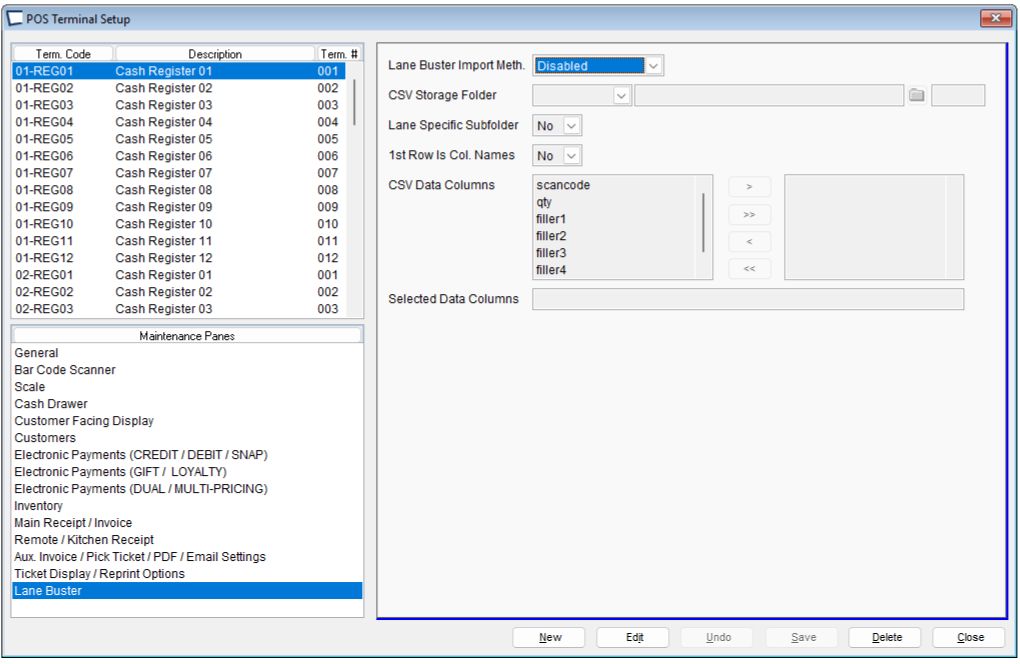
Lane Buster Import Meth.
•Wedge.
When scans are ready, the device is connected to the POS either through USB cable or through a wireless dongle. The user then activates the device to directly transmit the CSV to the POS. Note: a wireless dongle ties the device to a single POS whereas USB allows connection to any POS.
•Wait For File.
When activated, ^LB monitors a folder looking for a CSV file. When one is present or becomes present, when Lane Buster picks up the file. If Lane Buster encounters 2 or more CSVs, it picks up the oldest. Each POS must have an individual folder but they can be on shared or local storage. Lane buster automatically deletes the imported CSV file.
With wait for file, CSV files should be written as another file type and then renamed to CSV; otherwise, Acme may not pick up the entire CSV, If multiple CSV files are present then the oldest is imported first.
•Select File.
Simply stated, when Lane Buster is activated, the clerk is presented with a list of CSV files to select from. The containing folder can be shared between all the POSs or each POS has an individual folder. Other than selecting the CSV file, it operates similar to "Wait For File".
Folders
The Lane Specific Subfolder control determines whether a lane specific subfolder be added to the shared or specified CSV storage folder. It will always be in the form of "Lane##" where "##" is the terminal number. Note: Acme does not create these folders.
CSV Data Columns
Specifies columns and column order structure of the CSV data. Filler columns are only needed if a column precedes "scancode" or "qty" columns. Trailing columns do not require fillers.
Lane buster in Ticket Entry
When Lane Buster (^LB) is activated from Ticket Entry, the dialog will pop up in one of two states depending on whether the "Import Meth." is "Select File" method or not as shown below.
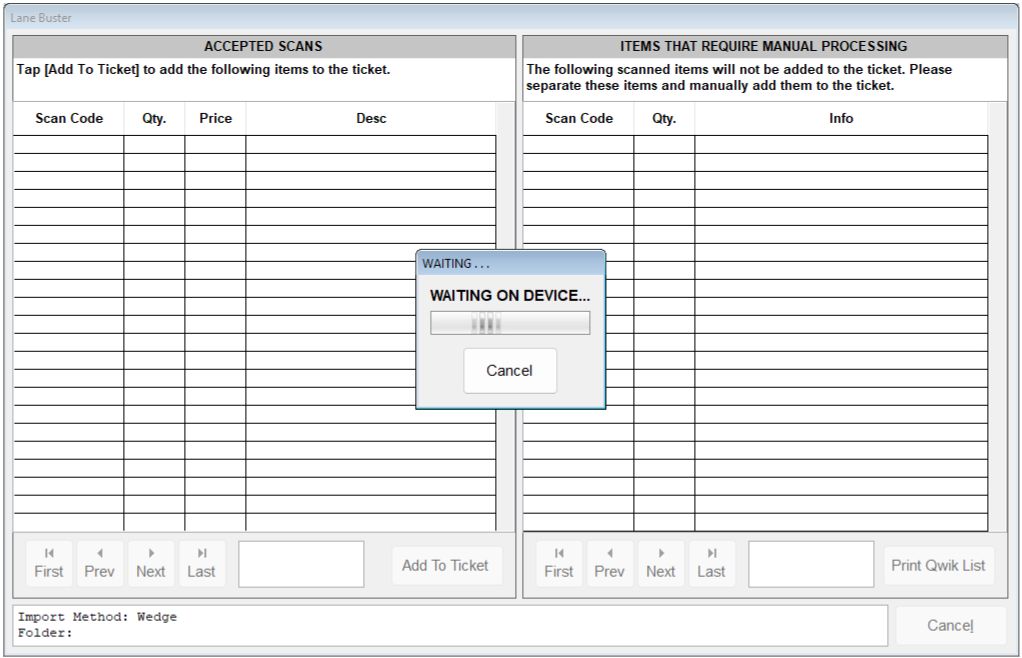
If the cancel button is tapped on either the "WAITING FOR DEVICE..." dialog or the "Selected CSV File" dialog, ^LB is canceled. Otherwise, the selected CSV is incorporated into the ^LB dialog.
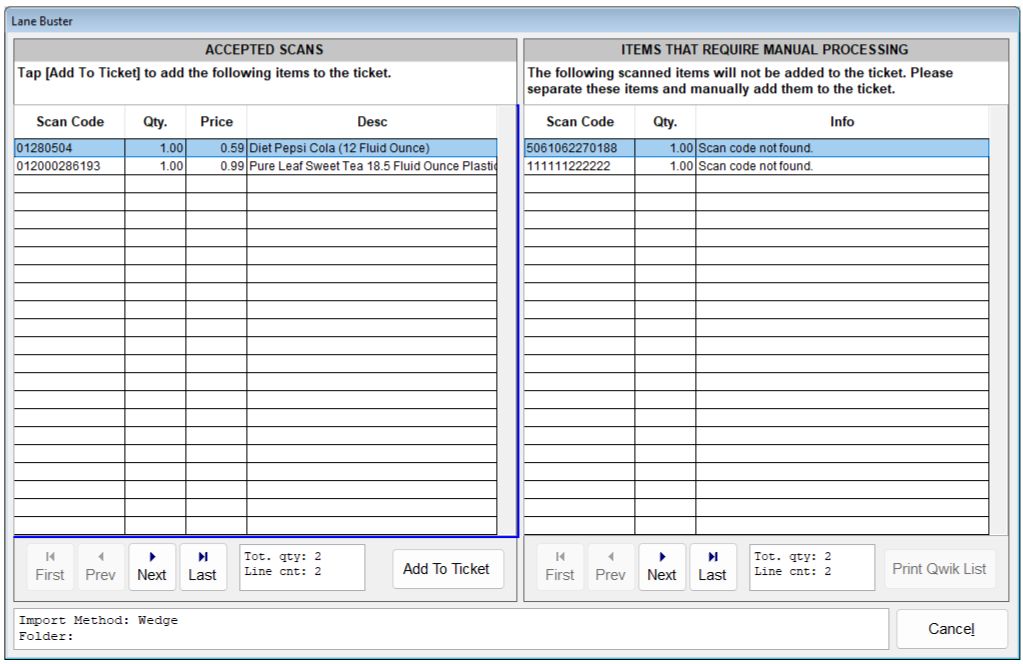
At this point the clerk can add the items to the ticket with the [Add To Ticket] button. Once the scans are added to ticket entry, the CSV file is deleted.
If the clerk cancels the ^LB dialog and the data was sourced from file, the clerk can optionally delete the file.
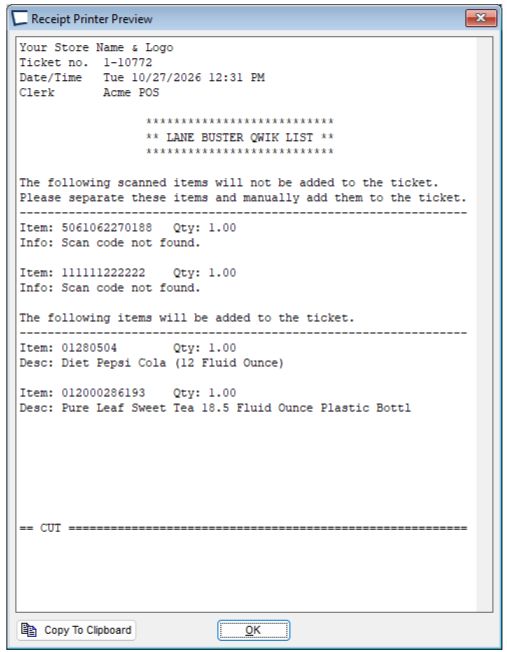
Items that cannot be added by ^LB are displayed in the right grid. These items need to added manually. The Print Qwik List button prints a simple list on the receipt printer to accommodate separating the items. The button is active if the main printer is a continuous receipt printer and the right grid is populated.
Wedge
The wedge import method is oriented toward blue tooth or USB scanners that have built in keypads and are capable of emulating a keyboard wedge. Some can double as a primary scanner or portable hand held for bulky items.
The scanner must be capable of creating and sending comma delimited data that represents the item code and quantity on each single line.
1.Place the device in collect mode.
2.Scan items in cart.
3.Activate ^LB in ticket entry.
4.Connect the device via USB cable or by dongle.
5.Tell the device to export.
Note: There is no direct method to indicate the end of the CSV in a wedge interface. To compensate for this, Acme watches the inter-character time. When that time exceeds 0.5 seconds, the transfer is assumed to be complete.